Showing posts with label Backup. Show all posts

Wednesday, November 6, 2024

Veeam Backup for AWS: Comprehensive Cloud Data Protection

In today's cloud-dependent world, data protection is essential for maintaining business continuity. Veeam Backup for AWS (VBA) offers an AWS-native, highly adaptable solution designed to protect, manage, and recover data within AWS environments. Its main purpose is to help organizations address the unique data protection needs of AWS workloads, ensuring that cloud data remains resilient against threats like accidental deletion, cyberattacks, or service interruptions.

Key Components of Veeam Backup for AWS

  1. Automated Backup and Recovery: Veeam allows for fully automated backup processes, supporting Amazon EC2, RDS, Dynamo DB, Redshift, EFS, FSx and VPC. With policies and schedules, users can customize backups to fit business needs and ensure their critical data is consistently protected.

  2. Cost Optimization: Veeam uses Amazon S3 and its various storage classes, such as Glacier and Glacier Deep Archive, to optimize storage costs. Users can automatically tier their data to lower-cost storage options, making cloud backups more affordable without sacrificing accessibility.

  3. Immutability and Security: Leveraging Amazon S3 Object Lock, Veeam ensures that backups remain immutable, providing a strong defense against ransomware and other cyber threats. This feature prevents any changes or deletions to stored data within a specified timeframe, securing it from unauthorized access or malicious attacks.

  4. Cross-Region and Cross-Account Recovery: In case of an outage or disaster, Veeam enables cross-region and cross-account recovery, allowing users to restore data quickly and securely across different AWS accounts or regions, thereby meeting stringent recovery objectives.

  5. User-Friendly Interface and Self-Service: The solution includes a streamlined interface that simplifies backup setup and monitoring. Additionally, self-service recovery options allow users to restore their data with minimal intervention, enabling faster response times in critical situations.

Starting with version 7.0, Veeam Backup for AWS is part of the Veeam Backup & Replication (VBR) solution. AWS Plug-in for Veeam Backup & Replication extends the Veeam Backup & Replication functionality and allows you to add backup appliances to Veeam Backup & Replication. The entire lifecycle of VBA is managed from VBR through AWS Plug-in. 
Deployment, update and management of VBA is done from VBR console. Currently you can still deploy VBA from AWS marketplace, connect it to VBR and upgrade it to the latest version. However this process is deprecated and only VBR console should be used to manage VBA. One or multiple VBA appliances can be managed from the same VBR server. 

Additionally, Veeam ONE can offer enhanced monitoring and reporting capabilities for VBA by collecting date about protected AWS resources. 

By combining these components, Veeam Backup for AWS provides an end-to-end backup and disaster recovery solution tailored for AWS cloud environments, balancing security, cost, and ease of use. 

In the following posts we will take a deeper look at Veeam Backup for AWS architecture and operations.

Sunday, July 9, 2023

Veeam Backup for Google Cloud - Zero Trust Architecture with Cloud Identity-Aware Proxy

Having security embedded by design into your architecture is more than just a best practice. It is how any one should actually start their work in any kind of project in public, private or hybrid cloud. Veeam Backup for Google Cloud (VBG) is one of the technologies that enables data security and resiliency by backing up and protecting your data running in the cloud. However, VBG is also residing in the same cloud and one of the first things is to make sure it is deployed and accessed in a secure manner. 

The challenge rises from the need to access VBG console for configuration and operation activities. The focus of this post is securing this access. 

In a standard deployment you would have your VBG appliance installed in a VPC, apply firewall rules to restrict access to VBG and then using an SSL encrypted web browser connect to the console. This connectivity can be done over Internet or in some more complex scenarios over VPN or interconnect links.  If you are connecting to VBG over Internet, you would need to expose VBG using a public IP address and restrict access to that IP address from your source IP. This is the use case that we are treating in our article. Another scenario using bastion servers and private connectivity is not treated now, however principals and mechanisms learned here can still apply. 
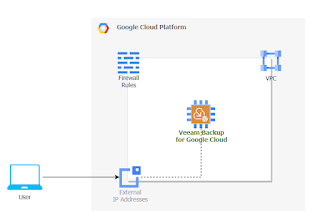

As you can easily see there are some disadvantages in the having VBG directly accessed from Internet. First, VBG is directly accessed from Internet. Having a firewall rule that limits source IP addresses allowed to connect to the external IP address of VBG increases the security trust, but it does not apply zero trust principles. We don't know who is hiding behind that allowed source IP address. There is no user identification and authorization in place before allowing the user to open a session to VBG console. Anyone connecting from that specific source IP address is automatically trusted.

How can we make sure that whoever or whatever trying to connect to VBG is actually allowed to do it? Please mind that we are talking about the connection to VBG console before any authentication and authorization into VBG is applied. We want to make sure that whoever tries to enter credentials in VBG console is identified and has the permissions to do that action. 

Think of use cases where your user has lost his rights to manage backups, however still has access to the backup infrastructure. You would want to have a secure and simple way of controlling that access and being able to easily revoke it. In this situation we can use Cloud Identity and Access Management (IAP) and Cloud Identity-Aware Proxy (IAP).

How does it work?

Cloud IAP implements TCP forwarding which encrypts any type of TCP traffic between the client initiating the session and IAP using HTTPS. In our case we normally connect to VBG console using HTTPS (web browser). Adding IAP TCP forwarding, the initial HTTPS traffic will be encrypted in another HTTPS connection. From IAP to VBG, the traffic will be sent without the additional layer of encryption. The purpose of using IAP is to keep VBG connected to private networks only and control which users can actually connect by using permissions and IAM users. 

Public IP of VBG will be removed and if outbound connectivity is needed, then use a NAT gateway to enable it, but this is out of scope for the current post.

To summarize, instead of allowing anyone behind an IP address to connect to our VBG portal, we restrict this connectivity to specific IAM users. Additionally we keep VBG on a private network.

Guide

Start by preparing the project: enable Cloud Identity-Aware Proxy API. In the console 

  • APIs & Services > Enable APIs and Services 
  • search for Cloud Identity-Aware Proxy API  and press enable.
Once enabled you will see it displayed in the list APIs


Allow IAP to connect to your VM by creating a firewall rule. In console go to VPC network > Firewall and press Create Firewall Rule
  • name: allow-ingress-from-iap
  • targets: Specifed target tags and select the tag of your VBG instance. We are using "vbg-europe" network tag. If you don't use network tags you can select "All instances in the network"
  • source IPv4 ranges: Add the range 35.235.240.0/20 which contains all IP addresses that IAP uses for TCP forwarding.
  • protocols and ports - specify the port you want to access - TCP 443
  • press Save


Grant to users (or groups) permissions to use IAP TCP forwarding and specify to which instance to make it as restrictive as possible. Grant the roles/iap.tunnelResourceAccessor role to VBG instance by opening IAP admin page in console (Security > Identity-Aware Proxy). Go to SSH and TCP Resources page (you may ignore the OAuth warning).


Select your VBG instance and press Add principal. Give to the IAM principal IAP-Secured Tunnel User role. You may want to restrict access to VBG to specific periods of time or days of the week. In this case add an IAM time based condition as seen in the example below.

Save the configuration and now you are ready to connect to your isolated VBG instance. On the machine where you want to initialize the connection you would need to have gcloud cli installed (Cloud SDK). Run the following command to open a TCP forwarding tunnel to VBG instance on port 443.

gcloud compute start-iap-tunnel  your-vbg-instance-name 443 --local-host-port=localhost:0  --zone=your-instance-zone

When the tunnel is established you will see a message in the console with the local TCP port that is used for forwarding, similar to below image:

To be able to execute gcloud compute start-iap-tunnel you need to have compute.instances.get and compute.instances.list permissions on the project where VBG instance runs. You may grant the permissions to the users or groups using a custom role.

In case the user is not authorized in IAP or an IAM condition applied, then you will get the following message when trying to start the tunnel:


Finally it's time to open your browser, point it to the localhost and TCP port returned by gcloud command and connect to your VBG instance in the cloud: 

The proposed solution is suitable for management and operations of VBG. However, please keep in mind that IAP TCP forwarding is not intended for bulk data data transfer. Also, IAP automatically disconnects sessions after one hour of inactivity. 

In this post we've seen how to use Cloud IAP and Cloud IAM to enable secure access to Veeam Backup for Google Cloud console using zero trust architecture principals.

Tuesday, June 11, 2019

Docker Containers and Backup - A Practical Example Using vSphere Storage for Docker

A few months ago I started looking into containers trying to understand both the technology and how it will actually relate to one of the questions I started hearing recently "Can you backup containers?".

I do not want to discourage anyone reading the post  (as it is interesting), but going further basic understanding of containers and Docker technology is required. This post will not explain what containers are. It focuses on one aspect of the Docker containers - persistent storage. Contrary to popular believe, containers can have and may need persistent storage. Docker volumes and volume plugins are the technologies for it.

Docker volumes are used to persist data to the container's writable layer. In this case the file system of the docker host. Volume plugins extend the capabilities of Docker volumes across different hosts and across different environments: for example instead of writing container data to the host's filesystem, the container will write data to an AWS EBS volume, or Azure Blob storage or a vSphere VMFS.

Let's take a step down from abstract world. We have a dockerized application: a voting application. It uses a PostgreSQL database to keep the results of the votes. The PostgreSQL DB needs a place to keep its data. We want that place to be outside the Docker host storage and since we are running in a vSphere environment, we'll use vSphere Storage for Docker. Putting it all in a picture would look like this (for simplicity, only PostgreSQL container is represented):


We'll start with the Docker host (the VM running on top of vSphere). Docker Engine is installed on the VM and it runs containers and creates volumes. The DB runs in the container and needs some storage. Let's take a 2 step approach:

First, create the volume. Docker Engine using vSphere Storage for Docker plugin (vDVS Plugin and vDVS vib) creates a virtual disks (vmdk's) on the ESXi host's datastore and maps it back to the Docker volume. Now we have a permanent storage space that we can use. 

Second step: the same Docker engine presents the volume to the container and mounts it as a file system mount point in the container. 

This makes it possible for the DB running inside the container to write in the vmdk from the vSphere datastore (of course, without knowing it does so). Pretty cool.

The vmdk is automatically attached to the Docker host (the VM). More, when the vmdk is created from Docker command line, it can be given attributes that apply to any vmdk. This means it can be created as:
  • independent persistent or dependent (very important since this affects the ability to snapshot the vmdk or not)
  • thick (eager or lazy zeroed) or thin
  • read only 
It can also be assigned a VSAN policy. The vmdk will persist data for the container and across container lifetime. The container can be destroyed, but the vmdk will keep existing on the datastore. 

Let's recap: we are using a Docker volume plugin to present vSphere datastore storage space to an application running within a Docker container. Or shorter, the PostgreSQL DB running within the container writes data to vmdk. 

Going back to the question - can we backup the container? Since the container itself is actually the runtime instance of Docker image (a template), it does not contain any persistent data. The only data that we need is actually written in vmdk. In this case, the answer is yes. We can back it up in the same way we can backup any vSphere VM. We will actually backup the vmdk attached to the docker host itself. 

Probably the hardest question to answer when talking about containers is what data to protect as the container itself is just a runtime instance. By design, containers are ephemeral and immutable. The writable space of the container can be either directly in memory (tmpfs) or on a docker volume. If we need data to persist across container lifecycles, we  need to use volumes. The volumes can be implemented by a multitude of storage technologies and this complicates the backup process. Container images represent the template from which containers are launched. They are also persistent data that could be source for backup. 


Steps for installing the vSphere Docker Volume Service and testing volumes
  • prerequisites: 
    • Docker host already exists and it has access to Docker Hub
    • download the VIB file (got mine from here)
  • logon to ESXi host, transfer and install the vib

esxcli software vib install -v /tmp/VMWare_bootbank_esx-vmdkops-service_0.21.2.8b7dc30-0.0.1.vib


  • restart hostd and check the module has been loaded
/etc/init.d/hostd restart
ps -c | grep vdmk


  • logon to the Dokcer host and install the plugin 
sudo  docker plugin install --grant-all-permissions --alias vsphere vmware/vsphere-storage-for-docker:latest

  • create a volume and inspect it - by default it will create the vmdk as independent persistent which will not allow snapshots to be taken - add option (-o attach-as=persistent) for dependent vmdks

sudo docker volume create --driver=vsphere --name=dockerVol -o size=1gb
sudo docker volume inspect dockerVol
sudo docker volume create --driver=vsphere --name=dockerVolPersistent -o size=1gb -o attach-as=persistent


  • go to vSphere client to the datastore where the Docker host is configured and check for a new folder dockvols  and for the VMDK of the volume created earlier


  • since the volumes are not used by any container, they are not attached to the Docker host VM. Create a container and attach it the dependent volume

sudo docker container run --rm -d --name devtest --mount source=dockerVolPersistent,target=/vmdk alpine sleep 1d

Lastly, create a backup job with the Docker host as source, exclude other disks and run it.

Thursday, March 7, 2019

vCenter Server Restore with Veeam Backup & Replication

Recently I went through the process of testing vCenter Server appliance restore in the most unfortunate case when the actual vCenter Server was not there. Since the tests were being done for a prod appliance, it was decided to restore it without connectivity to the network. Let's see how this went on.

Test scenario
  • distributed switches only
  • VCSA
  • Simple restore test: put VCSA back in production using a standalone host connected to VBR
Since vCenter is "gone", first thing to do is to directly attach a standalone ESXi host to VBR. The host will be used for restores (this is a good argument for network team's "why do you need connectivity to ESXi, you have vCenter Server"). The process is simple, open VBR console go to Backup Infrastructure and add ESXi host. 

You will need to type in the hostname or IP and root account. Since vCenter Server was not actually gone, we had to use the IP  instead of FQDN as it was seen through the vCenter Server connection with the FQDN. 

Next, start the an entire VM restore


During the restore wizard, select the point in time (by default last one), then select Restore to a different location or with different settings:


Make sure to select the standalone host:

Leave default Resource Pool and datastores, but check the selected datastore has sufficient space. Leave the default folder, however if you still have the source VM change the restored VM's name:

Select the network to connect to. Actually disconnect the network of the restored VM. That was the scenario, right? Since the purpose of this article is not to make you go through the same experience we had, let's not disconnect it. And you will see why immediately:

Keep defaults for the next screens and start the restore (without automatically powering on the VM after restore). 


A few minutes later the VM is restored and connected to the distributed port group. 

We started by testing a disconnected restored VM, but during the article we didn't disconnect it. And here is why: when we initially disconnected the network of the restored VM, we got an error right after the VM was registered with the host and the restore failed. 


Same error was received trying to connect to a distributed portgroup configured with ephemeral binding. The logs show the restore process actually tries to modify network configuration of an existing VM and that makes it fail when VBR is connected directly to the console.When the portgroup is not changed for the restored VM, then the restore process skips updating network configuration. Of course, updating works with standard switch port group. 


In short, the following restore scenarios will work when restoring directly through a standalone host:
  • restore VCSA to the same distributed port group to which the source VM is connected
  • restore VCSA to a standard portgroup


Friday, June 1, 2018

PowerCLI - Get the sizing of virtual machines

Any backup project needs an answer to at least the following questions: what is the total number of VMs, what is total backup size, what is the number of virtual disks per VM. It doesn't mean that it is that easy, since there are more questions that need answers, but these three are the base. Sometimes there is a fast answer to them, but there are situations when the information is unknown, or more difficult to find. To make life easier, I've put together a small script that is based on PowerCLI commandlets Get-VM and Get-HardDisk.

The script runs against vCenter Server, retrieves each VM, parses the data and sends the needed information to a CSV file. The file has the following structure: VM name, number of disks attached to the VM, used space without swap file (in GB), total used space (in GB), provisioned space (in GB).

A short explanation on the 3 different values for space:

  • provisioned space is the space requested by the VM on the datastore. For thick provisioned VMs the allocated (used) space is equal to requested space. Thin provisioned ones do not receive the space unless they consume it. Hence the difference between provisioned space and used space (allocated) columns
  • disk space reported in used column contains other files than the VM disks (vmdk). One of this files is the VM swap file, which is equal to the difference between the VM memory and the amount of VM reserved memory. This means that if there are no reservations on the VM memory, each VM will have the swap space equal to the size of memory. This file is not part of the backup and can be excluded. If we do a math exercise - 150 VMs with 8 GB each means more than 1 TB of data which we can ignore from calculations
  • finally, looking at vm10 in the image above, we see the 2 columns (used and used without swap) being equal. Since vm10 is powered on, this means it has a memory reservation equal to the whole memory. For powered off VMs, the 2 columns will always be equal since swap file is created only for running VMs.
Let's take a look at the code. First we define a function that takes as input a VM object and returns a custom made power shell object with the required properties of the VM

 1
 2
 3
 4
 5
 6
 7
 8
 9
10
11
12
13
14
15
16
17
function GetVMData($v) {
 $vmResMemory = [math]::Round($v.ExtensionData.ResourceConfig.MemoryAllocation.Reservation/1024,2)
 $vmMem = [math]::Round($v.MemoryMB/1024,2)
 $vmUsedSpace = [math]::Round($v.UsedSpaceGB,2)
 if ($v.PowerState -match "PoweredOn") {
  $vmUsedSpaceNoSwap = $vmUsedSpace - $vmMem + $vmResMemory # removing swap space from calculations
 } else {
  $vmUsedSpaceNoSwap = $vmUsedSpace
 }
 $vmProvSpace = [math]::Round($v.ProvisionedSpaceGB,2) # swap space included
 $vmName = $v.Name
 $vmNoDisks = ($v | Get-HardDisk).count

 $hash = New-Object PSObject -property @{Vm=$v.Name;NoDisks=$vmNoDisks;UsedSpaceNoSwap=$vmUsedSpaceNoSwap;UsedSpace=$vmUsedSpace;ProvSpace=$vmProvSpace}
 return $hash

}

We look at several parameters of the VM: memory reservation, allocated memory, used space, number of disks. We take the parameters and create a new PowerShell object that the function returns as a result.

The main body of the script is pretty simple. First, we define the format of the output CSV file and the we take every VM from vCenter Server (you need to be connected to vCenter Server before running this script) and process it:


1
2
3
4
5
6
7
8
9
$vmData = @('"Name","NoDisks","UsedSpaceGB(noSwap)","UsedSpaceGB","ProvisionedSpaceGB"')
$csvFile = ($MyInvocation.MyCommand.Path | Split-Path -Parent)+"\vmData.csv"

foreach ($v in get-vm) {
        $hash = GetVMData -v $v
 $item = $hash.Vm + "," + $hash.NoDisks + "," + $hash.UsedSpaceNoSwap + "," + $hash.UsedSpace + "," + $hash.ProvSpace
 $vmData += $item
}
$vmData | foreach { Add-Content -Path  $csvFile -Value $_ }

If you want to look only at VMs that are powered on, then you need to add an IF clause that checks the VM power state in the FOR loop before processing each VM:


1
2
3
if ($v.PowerState -match "PoweredOn") {
# process $v
}

Not it's time to look at the output CSV file and start sizing for that backup solution.

Wednesday, March 29, 2017

Veeam Backup and Replication: Offsite Backup Repository

One of the common scenarios for backup infrastructures is to send the local backups to a secondary site. In a Veeam Backup and Replication (VBR) environment, this can be easily done by deploying a backup repository in the secondary location and then configuring backup copy jobs for the backups that you want to be sent offsite. VBR  v9.5 supports 4 types of backup repositories:

  • Windows server with local or direct attached storage - local disk, USB drive, iSCSI/FC LUN
  • Linux server with local, direct attached storage or mounted NFS - local disk, USB drive, iSCSI/FC LUN, NFS mounts
  • CIFS (SMB) share
  • deduplicating storage appliance - only the following three are supported EMC Data Domain, ExaGrid and HPE StoreOnce and there is also Enterprise license required.
For the current implementation, the chosen solution is implemented in a VMware environment across two vCenter Servers. VBR Server and main repository are located in the primary site. In the secondary site a backup repository has been installed on top of a Windows VM. Data mover service is installed in both sites. 


Having a data mover service in secondary site also enables backups directly to secondary site. Now, let's see how to configure the offsite repository.

First we need to deploy the Windows VM. The process is "standard" procedure: reserve an IP address, deploy from template, select VM name, compute resource and storage, customize the guest OS (including joining to AD).

After the VM has been deployed, configure the VM hardware if necessary: repository space depending on the size of the backups and RAM (4GB for OS and up to 4GB for each concurrent backup job).

Once the Windows VM is up, go to VBR management console, backup infrastructure tab and start repository configuration wizard by right clicking on Backup Repository -> Add backup repository.
Add a name and a description for the new repository:

Select the type of repository (Windows, Linux, CIFS, Appliance):

On the repository server list page press "Add new"

This will open a new wizard that configures a new windows server repository. Add DNS name or IP address of the repository server (optionally a description):

Add the credentials to use for connecting to the VM. If you've saved them in the credential manager select them from the drop down list, otherwise click Add button and enter the username and password.

Review the components to be installed and press Apply. The wizard will install VBR components on the repository server and it displays the progress in the window:

A summary page is displayed with info about the target server:

Once server is configured the  new backup repository is displayed in the list of servers. Press Populate button to retrieve all the available storage locations. Select the appropriate storage, press Next.

Configure the repository parameters: backup folder path, maximum number of concurrent tasks, read and write data rates (if necessary). 

Advanced configuration features are realated mostly to storage appliances. Pressing Advanced button allows to select the following:
  • Align backup file data blocks - useful for better deduplication ratios on storage appliances that use constant block size deduplication
  • decompress backup data before storing - achieves better deduplication ratio on most storage appliances at the cost of performance
  • this repository is backed by rotated hard drives - if hard drives are rotated and removed from the server
  • user per-VM backup files - multiple I/O streams per VM will improve performance with storage appliances 
Next, select the mount server and whether to enable vPower NFS or not. Default TCP ports for mount server and vPower NFS could be changed if necessary (press Ports button).

Review the configuration page of the server and press Apply.

The summary page will display the tasks, the progress and their status - creating repository folder, installing components (mount server, vPower NFS), configuring components. 

The following services are installed on the repository server:
  • Veeam Data Mover Service - sends and receives data 
  • Veeam Mount Server - mounts backups and replicas for file-level access
  • Veeam Installer Service - installs, updates and configures VBR components
  • Veeam vPower NFS Service - enables running VMs directly from backup files by "publishing" VM vdmk's from backup files to vPower NFS datastore. The datastore is then mounted on the ESXi host.
Once the process finishes, the new repository appears in the repository list of the VBR console and it is ready to use. Use it as a destination for a copy job or as an offsite backup job.