Showing posts with label PostgreSQL. Show all posts

Wednesday, May 3, 2023

Veeam Cloud Integrated Agent

Veeam Backup and Replication v12 brings a cloud integrated agent as part of its optimizations for hybrid cloud architectures. The agent enables application aware immutable backups for cloud workloads hosted in AWS and Microsoft Azure. It is deployed and managed through native cloud API without direct network connection to the protected workloads and it stores the backups directly on object storage. 

Having the agent deployed inside the protected cloud workloads, Veeam enables the same application aware backup technology that it uses for on-premises workloads. This in turn unlocks granular recovery using Veeam Explorers.

Let's see the agent at work. We have an Ubuntu VM in Azure. The VM has only private connectivity (no public IP). There is also a PostgreSQL instance running on the VM that we want to protect it using application aware processing. 


Veeam Cloud Message Service installed on the backup server communicates with Veeam Cloud Message Service installed on the protected cloud machines via a message queue. The message service on the cloud machines will in turn communicate with other local Veeam components - Transport Service, Veeam Agent. The backups are sent directly to a compatible object storage repository. 

To start configuration, we need to create a protection group. In VBR console, from  Inventory > Physical Infrastructure > Create Protection Group


Select "Cloud machines"

Add Azure credentials, subscription and region

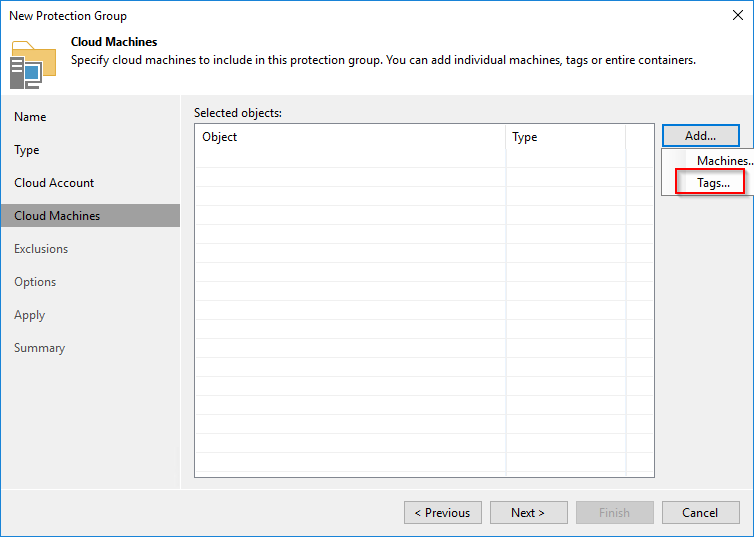
Select the workloads to protect - statically choosing the VMs or dynamically using tags


Select to exclude objects (if required)

Select Protection group settings - similar to the ones for a standard agent 


Finalize the protection group. 

Once the protection group is created, discovery of protected workloads starts. During the process Veeam components are pushed on the protected machine. Keep in there is no direct connectivity between Veeam Backup server (VBR) and the cloud machine. More, the cloud machine has only private IP address. All actions are done using Azure APIs and Azure native services.


First Veeam installs Veeam Cloud Message service on the protected instance. Then it installs Veeam Transport Service and Veeam Agent for for Linux. VBR server uses Cloud Message service and Azure Queue Storage to communicate with service on the protected instance. 

The cloud machine is configured. It's time to create a backup job. Go to Home > Jobs > Backup > Linux computer

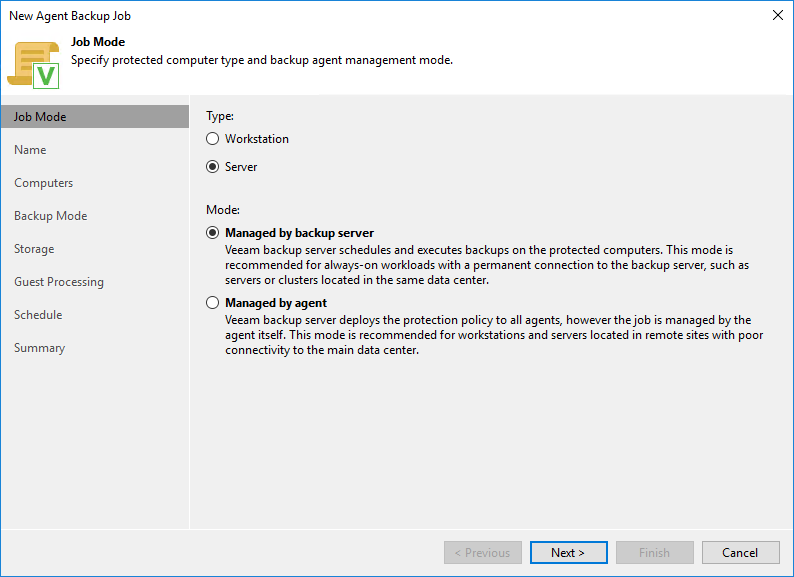
We need to use managed by backup server. 


Select the protection group

Select the backup mode

Destination repository needs to be object storage

We'll enable application aware processing to protect the PostgreSQL instance running on the cloud machine. All the options for a standard Veeam Agent for Linux are available. We could run application aware backups for Oracle, MySQL, pre and post job scripts, pre and post snapshot scripts. We could also enable guest file system indexing.

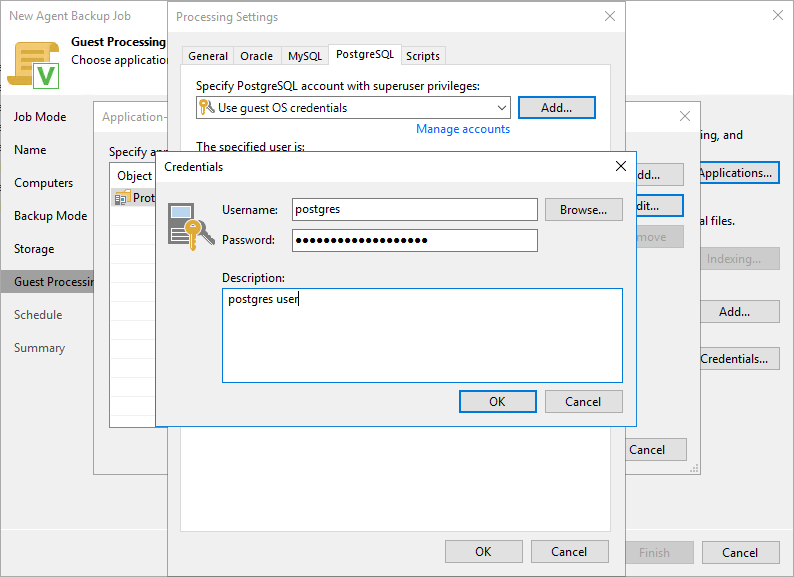
The PostgreSQL instance has been configured to allow users with authentication. Add the user credentials to the agent.


Select the backup schedule and run the job


After the backup is completed we look at restore options. We can now restore our cloud machine on premises using Instant recovery. We can also restore it to another cloud. 

We have access to Veeam Explorer for PostgreSQL and we can restore the instance to another server, we can publish the instance to another server or restore the latest state to the protected VM. 


To implement 3-2-1 we can create a backup copy job and get a copy of the backups to another repository on premises or in another cloud service provider. 

In this post we have looked at the new Veeam cloud integrated agents, what are their advantages and we have learned how easy it is to configure them. 

Thursday, February 6, 2020

Migrate vRealize Orchestrator 7.3 Cluster with External Database to 7.6

In every environment's life comes a time when you need to upgrade. So it did happen for our vRO setup. The source environment is running vRO 7.3.1 in a 2-node cluster and with and external MSSQL database. The target environment is a 2-node cluster running vRO 7.6 and internal PostgreSQL (since no external is supported).

Because source vRO is connected to external MSSQL server, in place upgrade is out of the question. So a migration is actually the only way to do it. A constraint for the migration is not to change hostnames or IP addresses. Well, the requirement is actually to get everything back to 7.6 with a minimum of reconfiguration and here we talk about plugins, workflows, actions, configuration elements, certificates and all that jazz.

Having laid down the task ahead we started working on the plan. And what we came up with was pretty interesting. 

vRO 7.6 appliance offers a migration tool that is accessible through VAMI. The tool needs access to source vRO and database. Since we have a 2-node cluster, we'll take advantage of that and do a rolling migration. Source vRO 7.3 cluster is made of nodes: node1 and node2. Target vRO 7.6 cluster will be running the same vRO nodes.

So how does this rolling migration look like:


In initial state there is a vRO 7.3.1 cluster with external MSSQL database. We start by redirecting traffic in load balancer to node1 and disabling monitoring on the pool. Then we break the cluster by removing node2 and powering it off. Next we deploy a new node2 running 7.6 and using the same hostname and IP address. If you want to reuse the same VM name, you just need to rename the old node in vCenter Server.

This takes us to intermediary state where we have one node1 in 7.3.1 and node2 in 7.6 with and embedded PostgreSQL DB. Once node2 in 7.6 is up an running, we connect to VAMI and fire up the migration tool. Migration tool will transfer all data from node1 and the external DB to node2. After vRO is migrated to 7.6, we proceed to power off node1 running 7.3.1 and deploy node1 in 7.6. Don't forget to switch over traffic to node2 in load balancer.

Now we are in final state where both nodes are running 7.6. Once node1 is up, we add it to the cluster that node2 is already member. The cluster is back and this time running vRO 7.6 with embedded PostgreSQL database. Simple, right?

Well, there are a few of gothcas:
- when running the migration tool, a pre-check is run that can fail if the vRO DB contains duplicates; it can be fixed by either removing duplicates from DB or connecting with vRO client to source vRO and renaming them
- SSL certificates are not migrated - you need to connect to source vRO keystore and export the certificates, then re-add them in control center
- there is a cumulative update that needs to be applied to the freshly deployed vRO 7.6
- dynamic types plugin configuration is not migrated - there is an updated plugin that needs to be installed
- in some cases you may need to update the appliance hardware including file system

Lastly enable traffic in load balancers to both nodes and re-enable health monitors. Do that after importing SSL certificate.

Happy migrations!