Showing posts with label Veeam Agent for Linux. Show all posts

Sunday, April 14, 2024

Veeam Backup & Replication Architecture for Disaster Recovery in Google Cloud

In the following article we look at a DR architecture for Veeam Backup & Replication using Google Cloud as a disaster recovery location and implementing read only access to shared backup repository. 

Having a disaster recovery (DR) plan is not a nice to have, but a core requirement for any business that wants to survive a crisis situation. For any disaster recovery plan we need a secondary location where to restart the services. This secondary location can actually be a public cloud service provider. Veeam Backup & Replication enables recovery of virtual machines backups and agent based backups directly to the cloud. 

We propose to implement a solution with two backup servers (VBR) accessing the same backup data. We deploy one backup server on premises (ON PREM VBR in the following diagram). It acts as our operational server managing backups, backup copy jobs and restores. The second backup server (DR VBR) is deployed in Google Cloud (GCE). It acts as our DR backup server. For the most of the time it will not be used. It becomes active during testing or during a real DR situation. 


On premises VBR is configured to write backups to a local repository. A backup copy job creates a copy of the primary backups to a Google Cloud Storage repository. To write data to the Cloud Storage repository, the on premises VBR will use a HMAC key associated with a service account that has read/write permissions to that bucket. Since we do not plan to use on premises VBR to restore to Google Cloud, these are the only permissions that it needs. It also needs to be the only VBR that has write permission to that bucket. 

The DR VBR is deployed on a GCE VM in backup project. We are using a separate projects to host the backup infrastructure. It uses a service account with read only permissions to Cloud Storage to access data copied by the on premises VBR. Using the read only account we make sure that there will be no incompatibility or data corruption at the repository level. 

Since the cloud VBR is used to recover VMs in case of a DR situation, it needs an additional service account with restore to GCE permissions (listed here). The service account is configured in the project where we will restore the VMs (production project) and added to VBR using service account key. 

The proposed implementation can be further adapted for other scenarios such as sending backups directly to cloud or even cloud only environments.

By using the proposed architecture, we implement 3-2-1 rule and enable fast and secure restores in case of a disaster while keeping flexibility, low costs and RTO/RPO for on premises restores.


Wednesday, May 3, 2023

Veeam Cloud Integrated Agent

Veeam Backup and Replication v12 brings a cloud integrated agent as part of its optimizations for hybrid cloud architectures. The agent enables application aware immutable backups for cloud workloads hosted in AWS and Microsoft Azure. It is deployed and managed through native cloud API without direct network connection to the protected workloads and it stores the backups directly on object storage. 

Having the agent deployed inside the protected cloud workloads, Veeam enables the same application aware backup technology that it uses for on-premises workloads. This in turn unlocks granular recovery using Veeam Explorers.

Let's see the agent at work. We have an Ubuntu VM in Azure. The VM has only private connectivity (no public IP). There is also a PostgreSQL instance running on the VM that we want to protect it using application aware processing. 


Veeam Cloud Message Service installed on the backup server communicates with Veeam Cloud Message Service installed on the protected cloud machines via a message queue. The message service on the cloud machines will in turn communicate with other local Veeam components - Transport Service, Veeam Agent. The backups are sent directly to a compatible object storage repository. 

To start configuration, we need to create a protection group. In VBR console, from  Inventory > Physical Infrastructure > Create Protection Group


Select "Cloud machines"

Add Azure credentials, subscription and region

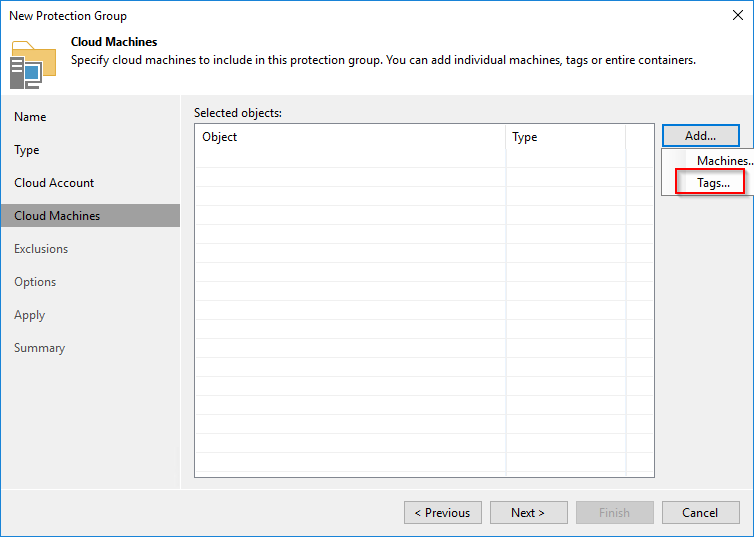
Select the workloads to protect - statically choosing the VMs or dynamically using tags


Select to exclude objects (if required)

Select Protection group settings - similar to the ones for a standard agent 


Finalize the protection group. 

Once the protection group is created, discovery of protected workloads starts. During the process Veeam components are pushed on the protected machine. Keep in there is no direct connectivity between Veeam Backup server (VBR) and the cloud machine. More, the cloud machine has only private IP address. All actions are done using Azure APIs and Azure native services.


First Veeam installs Veeam Cloud Message service on the protected instance. Then it installs Veeam Transport Service and Veeam Agent for for Linux. VBR server uses Cloud Message service and Azure Queue Storage to communicate with service on the protected instance. 

The cloud machine is configured. It's time to create a backup job. Go to Home > Jobs > Backup > Linux computer

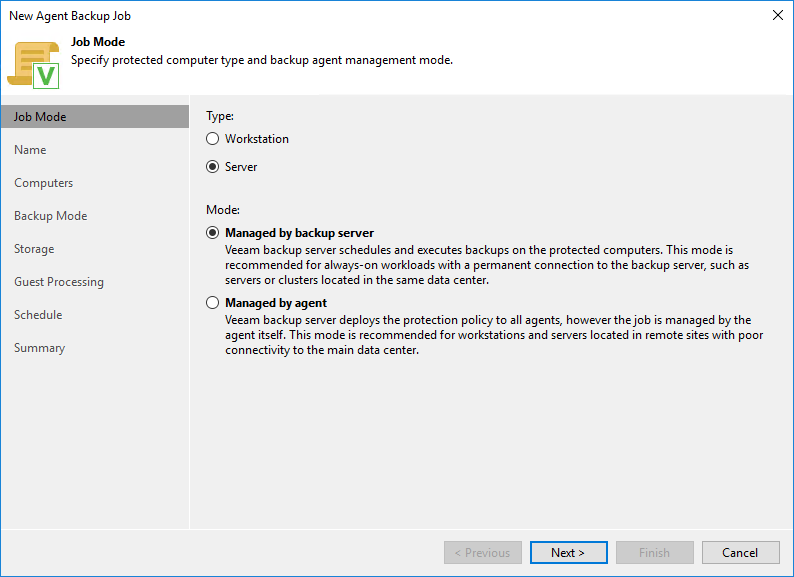
We need to use managed by backup server. 


Select the protection group

Select the backup mode

Destination repository needs to be object storage

We'll enable application aware processing to protect the PostgreSQL instance running on the cloud machine. All the options for a standard Veeam Agent for Linux are available. We could run application aware backups for Oracle, MySQL, pre and post job scripts, pre and post snapshot scripts. We could also enable guest file system indexing.

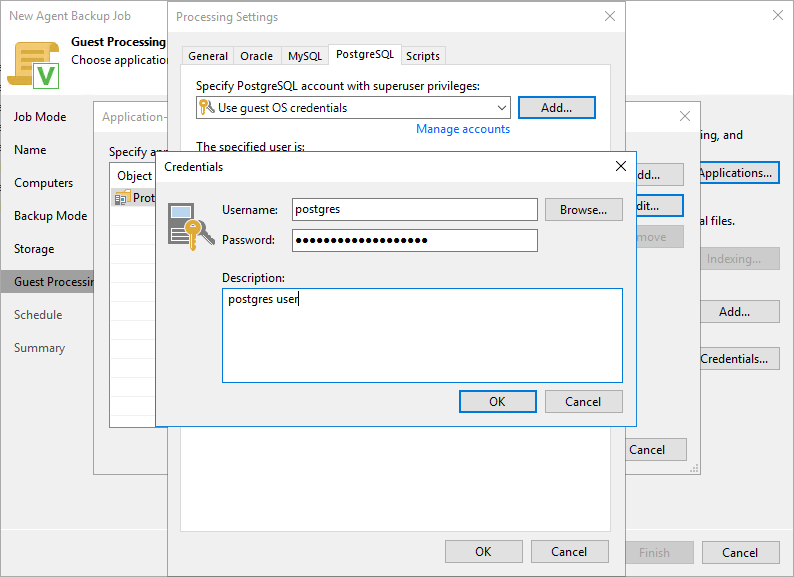
The PostgreSQL instance has been configured to allow users with authentication. Add the user credentials to the agent.


Select the backup schedule and run the job


After the backup is completed we look at restore options. We can now restore our cloud machine on premises using Instant recovery. We can also restore it to another cloud. 

We have access to Veeam Explorer for PostgreSQL and we can restore the instance to another server, we can publish the instance to another server or restore the latest state to the protected VM. 


To implement 3-2-1 we can create a backup copy job and get a copy of the backups to another repository on premises or in another cloud service provider. 

In this post we have looked at the new Veeam cloud integrated agents, what are their advantages and we have learned how easy it is to configure them. 

Saturday, June 30, 2018

VMware BIOS UUID, vCloud Director and Veeam Agent

Looking at the title it may seem a long and complicated story. Actually is a very simple one. While working in lab which is hosted by a vCloud Director (vCD) instance, I was testing a SQL Always ON Cluster and the Veeam Agent for Windows. I've created my 3 node cluster, installed the database, configured availability groups.  All went well until I tried to install the Veeam agent. This stopped with the error that  the same UUID was being utilized by all 3 nodes.

Well, all 3 VMs were deployed from the same vCD catalog VM. According to this VMware KB article, by default vCD keeps the same UUID value for cloned VM's. Since I did not have access to vCD to change the settings, the only choice was to actually modify the UUID of the VMs.

There are several ways of doing in it, from manual to programmatic (as can be seen in this KB article)

I've chosen PowerCLI variant. The steps are pretty straight forward:
  • shutdown the VM
  • get the current UUID
  • change the UUID
  • power on the VM

And the code to do it below. Do not forget to change the $newUuid (I used to modify the last digits from the current one).


 1
 2
 3
 4
 5
 6
 7
 8
 9
10
11
12
13
14
15
16
17
$vmName = "myClonedVm"
$vm = Get-VM -Name $vmName

$vm.extensiondata.config.uuid
$newUuid = "00112233-4455-6677-8899-aabbccddeeff"

$vm | Shutdown-VMGuest
While ((Get-VM -Name $vmName).PowerState -ne "PoweredOff") {
  Write-Host -foreground yellow "... waiting for" $vmName "to power off"
  sleep 5
}

$spec = New-Object VMware.Vim.VirtualMachineConfigSpec
$spec.uuid = $newUuid
$vm.Extensiondata.ReconfigVM_Task($spec)

Start-VM -VM $vmName -RunAsync

Monday, May 21, 2018

Automate Veeam protection groups using PowerShell

Veeam Backup & Replication U3 adds management for Veeam agent for Linux and Windows. Provided capabilities include automated deployment of agents, centralized configuration and management of backup jobs for protected computers and centralized management of backups created by agents.

To handle the management of computers in VBR inventory,  protection groups are utilized. Protection groups are containers in the inventory used to manage computers of the same type: for example Windows laptops or CentOS servers. Protection groups are used to automate the deployment and management of agents since they allow performing tasks at the group level, not at the individual computer level. At protection group level you define scheduling options for protected computers discovery, the distribution server from where agent binaries can be downloaded, agent installation.

In the current post we'll explore an automated way of creating protection groups and adding computers to them using Veeam PowerShell extension.

The script creates a new protection group and adds a list of computers to it. It takes as input the following parameters:
  • protection group name
  • computer list
  • rescan policy type: daily or periodically
  • rescan hour for daily rescans
  • rescan period in hours for periodically rescans
  • automatically reboot computers if necessary
Before running the script, make sure you have connected to VBR server using Connect-VBRServer commandlet. During script run, it will prompt for entering credentials for the user that will install the agent

If the protection group already exist, the following message will be displayed and execution stopped:
"Protection group: Protection_Group_Name already exists. Use another name for protection group."

After the successful execution, the newly created protection group is displayed in VBR console, Inventory view, under Physical & Cloud Infrastructure. Right click on it and select Properties. In the first tab you'll that the group has been created by PowerShell

On Computers tab, select one computer and pressing Set User will display the credentials entered during the script run. The credentials are also commented that have been added by PowerShell:

Finally, on Options tab you can see that the parameters configured at the start of the script have been applied. In this case periodically rescan every 6 hours and automatic reboot:


The script configures automatic agent installation, and if the computers are reachable and credentials entered are valid and have appropriate rights, then the status of the computers displayed in VBR console is "Installed".

Finally, the code listing


 1
 2
 3
 4
 5
 6
 7
 8
 9
10
11
12
13
14
15
16
17
18
19
20
21
22
23
24
25
26
27
28
29
30
31
32
33
34
35
36
37
38
39
40
41
42
43
44
45
46
# parameters
$protectionGroupName = "All Linux Servers"
$newComputers = @("192.168.1.2","192.168.1.3","192.168.1.4")
$rescanPolicyType = "periodically" # other value: "periodically"; any other value defaults to "daily"
$rescanTime = "16:30"
$rescanPeriod = 1 # rescan period in hours for "periodically" - can be 1, 2, 3, 4, 6, 8, 12, 24
$rebootComputer = "false" # any other value will not set -RebootIfRequired flag

# function definition
function NewProtectionGroup($protectionGroupName, $newComputers, $rescanTime, $rescanPolicyType, $rescanPeriod, $rebootComputer) {
  Write-Host -foreground yellow "Enter credentials for computers in protection group " $protectionGroupName
  $creds = Get-Credential
  $newCreds = Add-VBRCredentials -Credential $creds -Description "powershell added creds for $protectionGroupName" -Type Linux
  $newComputersCreds = $newComputers | ForEach { New-VBRIndividualComputerCustomCredentials -HostName $_ -Credentials $newCreds}
  $newContainer = New-VBRIndividualComputerContainer -CustomCredentials $newComputersCreds
 if ($rescanPolicyType -eq "daily") {
  $dailyOptions = New-VBRDailyOptions -Type Everyday -Period $rescanTime
  $scanSchedule = New-VBRProtectionGroupScheduleOptions -PolicyType Daily -DailyOptions  $dailyOptions
 } elseif ($rescanPolicyType -eq "periodically") {
  $periodicallyOptions = New-VBRPeriodicallyOptions -PeriodicallyKind Hours -FullPeriod $rescanPeriod
  $scanSchedule = New-VBRProtectionGroupScheduleOptions -PolicyType Periodically -PeriodicallyOptions  $periodicallyOptions
 } else {
  Write-host -foreground red "Uknown rescan policy type" $rescanPolicyType
  Write-host -foreground red "Using daily "
  $dailyOptions = New-VBRDailyOptions -Type Everyday -Period $rescanTime
  $scanSchedule = New-VBRProtectionGroupScheduleOptions -PolicyType Daily -DailyOptions  $dailyOptions
 }
 if ($rebootComputer -eq "true") {
  $deployment = New-VBRProtectionGroupDeploymentOptions -InstallAgent -UpgradeAutomatically -RebootIfRequired
 } else {
  $deployment = New-VBRProtectionGroupDeploymentOptions -InstallAgent -UpgradeAutomatically
 }
  $protectionGroup = Add-VBRProtectionGroup -Name $protectionGroupName -Container $newContainer -ScheduleOptions $scanSchedule -DeploymentOptions $deployment
  # rescan and install
  Rescan-VBREntity -Entity $protectionGroup -Wait
}

# Script body
if (Get-VBRProtectionGroup -Name $protectionGroupName -ErrorAction SilentlyContinue) {
 Write-Host -foreground red "Protection group:" $protectionGroupName "already exists. Use another name for protection group."
} else {
 NewProtectionGroup -protectionGroupName $protectionGroupName -newComputers $newComputers -rescanTime $rescanTime -rescanPolicyType $rescanPolicyType -rescanPeriod $rescanPeriod -rebootComputer $rebootComputer
}