Showing posts with label VMware. Show all posts

Thursday, December 8, 2022

VMUG Leader Summit 2022 - How The Times Have Changed

It's been 32 months since the last summit took place and how the times have changed. Not sure if anyone would've dared in February 2020 to imagine the shifts to come a few weeks later and that will keep on coming throughout the next 2 and a half years. And it's not only socially and politically, but also technologically. The status quo of the human society was pretty much ignored and we had to learn, adapt and change. 

This week in Lisbon I had the opportunity to meet again the great community of people from all the corners of the world called VMUG. And the people in it is what makes this whole idea great. In 2020 it was the social part that impressed me too. Technologies come and change, trends may shift (again this word) on the way. The people involved in the process are the most important. 

Talking about people we had (as always) a number of select guests from VMware to talk to us. From Joe Baguley's (CTO EMEA) talk about skills gap and how AI and robots are slowly making it to the masses and into your house, to Duncan Epping's journey throughout VMware and the idea that everyone wants to be something, but very few want to make the effort to become that something, it all evolved around the changes that we are living and need to face. And it is scary, especially since the buzz word without any relation to the event, was AI, and more exactly ChatGPT, an OpenAI project that was trained to interact with humans in a conversation like natural language. The ease of usage and accessibility of this AI model is amazing and it will change a lot. But it is still only a tool in our hands. And the way we use it will make a difference. Only two years ago a talk around this subject would've brought a lot of smiles. 

I am a techie, not really great with words so let me wrap it up. As humans we need certainty, connection, contribution. VMUG is a community that brings all of this and more. And it does it through its members, the people that change, learn and grow along with the community. 

Thursday, April 16, 2020

Veeam Backup & Recovery - Change Block Tracking Reset

Change Block Tracking (CBT) is a feature that allows tracking of changed disk sectors. Tracking for virtual disks is done in the virtualization layer. CBT is exposed through vSphere APIs for Data Protection (VADP) to 3rd party applications. 

VBR uses this feature to track changes between incremental backups and make those backups faster. Instead of reading the whole vmdk, it will ask and receive only the changed blocks from the last incremental backup. How do you know CBT is enabled and used? 

From VMware point of view, you will see for each vmdk a file with the  vmdk_name-ctk.vmdk

From Veeam point of view, you will see in the backup job statistics next to the disk details CBT. Let's look at what actually happens in the backup job.

CBT on, active full backup, read 20 GB

CBT on, incremental backup, read 11 MB

CBT off, incremental backup, read 20 GB


This is CBT in action. The first picture is an active full, so the whole disk has been read. The second one is an incremental where only changes from last backup have been read. When CBT was disabled, the second incremental also read 20GB.  Now extrapolate this to hundreds of VMs to understand the importance of CBT: less data read means not only a shorter backup window, but also less load on the production storage. 

Luckily, CBT is enabled by default for all newly created backup jobs. It can be found in the vSphere integration tab, in Storage > Advanced. 


CBT is not supported for physical mode RDMs and if a VM has snapshots when it's activated the first time. Sometimes CBT can get corrupted and the only way to solve it is to reset CBT. This is not easily done A new feature in VBR v10 allows to automatically reset CBT on all VMs when after an active full backup is executed. Remembering how many times I heard support guys advising a CBT reset, I think this is a cool feature to add. The CBT reset action is caught in the backup stats window


The downside is that the active full backup will take a bit longer, but you will be protected against potential CBT corruptions.


Saturday, February 29, 2020

VMUG Leader Summit 2020 - An Eastern European Point of View

I had the opportunity to be invited to VMUG Leader Summit 2020. It takes place at VMware headquarters in Palo Alto and it brings together people from all around the world that share common passions: technology and community.

VMware User Group (VMUG) leaders are defined by their willingness to put an extra effort into bringing together local communities to learn new things and to discuss technology with good and bad. The local meetings are places of new and open ideas, networking and even socializing. I have been volunteering for enabling these meetings for the past seven years, but until I started to meet leaders from other countries I haven't understood the full potential. First I met fellow leaders at VMworld. But the time allocated at that event was limited. However even a few minutes with someone can prove inspiring. But when the summit was organized and the chance to spend 2 days next to my peers, then a new world opened to my eyes.

I come from an Eastern European country having somewhere deep down the, let's say, small town complex as I've always been looking up to Western Europe/US modern cultures. IT came as an escape for me and I have been working in multi cultural/multi national environments for the past 12 years. I've been in contact with people from Eastern and Western Europe, Middle East, Asia, Australia and even US in both business and social circumstances. However I have never seen all of these cultures coming together in the same time at a single table. Seeing all those people from literally all around the globe talking, debating, having fun in the same place is what never ceases to amaze me and what the summit brings as a huge value.

This was my second summit. Last year I was thinking that I was so lucky to get a glimpse at the organizational culture of another company and to see so many inspirational people coming and talking to us. For this year I had no expectations since I've already seen the best. And it was the opposite. I was again surprised and got more inspired and awed by the people that make up an organization.

As you can easily understand the summit wins on two categories. It brings together people from corners of the world to meet each other face to face and exchange ideas, inspire and trust one another. I believe that no matter how easy is to have virtual meetings, a handshake or a look in the eye can make a difference. The second win from the summit: it brings people closer to values and culture of VMware by giving us, the community of users, direct access to its C-level executives and awesome technical staff. Now that is a hard thing to do and such a cool one, too.

Personally, as a VMUG leader and as a human being, I fell like I've grown a bit since this journey started and so much more in the past 2 years. I leave here a dear photo and challenge you to guess the number of countries and continents represented in the picture:


Saturday, November 9, 2019

Surprises at VMworld 2019

It's been an interesting year where VMware announced a ton of new and exciting stuff from projects Pacific and Tanzu to integrating Carbon Black to almost all of the products. Hence this VMworld has been one of the best so far: kubernetes, containers, integrated security, even more networking, infrastructure as a code, terraform, ansible, machine learning... almost forgot, vSphere on ARM. A lot of words and talks not in the traditional virtualization admin's vocabulary. Things are changing and doing it fast. Looking at how VMware redefined itself, caught up with missed trains and how it will lead some of those trains, I think we are going through some of most radical shifts in IT and I personally feel like I've missed at least one train.


I am an old style IT guy: started installing servers in racks and learning by heart RJ45 cross and direct cabling schemes. When cloud came along, it was not very difficult to apply what I had learnt in datacenters. But I stayed somehow focused on the private and sometimes hybrid cloud. Never went fully cloud native, never gotten knee deep into deploying and operating applications in the public cloud. Naturally, DevOps went from hype to mainstream. And as time passed by, machine learning came along and AI started doing crazy stuff like beating humans at League of Legends (I did play a lot of DotA back in the days and not a single game of Go :-) ) A lot happened in the last 10 years.

I've been going to VMworlds since 2013 and kind of grew up with it. Still, this year I felt like I've been taken a bit by surprise. VMworld is, as always, a place to meet old and new friends and a place to learn about new trends. Barcelona adds to that whole vibe of the event. It was a blast to see people I've worked with on different projects years and years ago or to meet my fellow VMUG leaders.

As for the technical part:
- vSphere on ARM looks promising - comparing to last year there were several devices installed with ESXi  from tablets, to network cards to high performance ARM 2U rackable servers
- machine learning and Watson applied to log monitoring and analysis
- vRA 8 redesign - container based, no Windows
- NSX-T everywhere - in your DC, in the cloud and  with a single pane of glass
- can't wait for the next vSphere release

Solution exchange walk was also interesting:
- if AWS presence was expected, having Azure and Oracle (although the latter was a bit hidden) was cool
- most of the traditional networking/security vendors were not present anymore
- LG and Samsung had pretty big stands
- a lot of backup vendors old and new
- ComputerWeekly was also there with a stand
- Penetration Testing as a Service - a platform from where you could hire pen testers to do some... pen testing
- VMware's booth is getting bigger and bigger

My take away from last week is I have to do a lot of reading and learning, way more than the usual, but this is what makes IT interesting.

Wednesday, January 30, 2019

NSX-T Part 1 - Architectural Overview

This is is the first in a series of blogs about NSX-T installation and configuration. Although similar in concepts, NSX-T bring a series of differences from NSX-V. One of them is that it is independent from vCenter Server. And this brings also a lot of changes from what I was used to - some changes are architectural, others are related to functionality and user interface.

The blog series will start with architectural overview, then go to deployment of NSX-T Manager and configuration of controllers, followed by basic configuration of NSX-T environment. Once we get to use NSX-T overlay network between two VMs, we will continue with exploring routers and edges.

At a high level, the architecture is made of the same 3 components as in NSX-V:
  • management plane - single API entry point, user configuration, handles user queries, and performs operational tasks on all management, control, and data plane nodes in the system
  • control plane - computes all ephemeral runtime state based on configuration from the management plane, disseminates topology information reported by the data plane elements, and pushes stateless configuration to forwarding engines
  • data plane - stateless forwarding/transformation of packets based on tables populated by the control plane and reports topology information to the control plane

Management Plane Agent (MP Agent) is a component that runs on controllers and transport nodes (hypervisors) and is responsible for executing tasks requested by Management Plane:

  • desired state of the system
  • message communication to management plane (configuration, statistics, status, real time data)
Control plane is made of Central Control Plane (CCP) running on the Controller cluster and the Local Control Plane (LCP) running on transport nodes. CCP provides configuration to other controllers and LCP and it is detached from data plane (failure in CCP will not impact data plane). LCP is responsible for most of the ephemeral runtime state computation and pushing stateless configuration to forwarding engine in data plane. LCP is linked to the Transport Node hosting it.

Data plane's forwarding engine performs stateless forwarding of packets based on tables populated by control plane. Data plane maintains state for features like TCP termination, but this state is about payload manipulation and is different from the state maintained at Control Plane's level which is about how to forward packets (see MAC:IP tables)


N-VDS (NSX Managed Virtual Distributed Switch or KVM Open vSwitch)
N-VDS provides traffic forwarding. It is a component presented as a hidden distributed switch (it will not appear in vCenter Server for example). It is always created and configured by NSX manager in vSphere environments. It can be predefined in KVM. This is a major change from NSX-V. It also implies that you will need to have at least one not utilized vmnic on the ESXi host for the N-VDS. 
Another change is that the encapsulation protocol used now is GENEVE (latest IETF draft here)

Virtual Tunnel Endpoint (VTEP)
VTEP is the connection point at which the encapsulation and decapsulation takes place.

Transport Node
A node capable of participating in an NSX-T Data Center overlay or NSX-T Data Center VLAN networking. 

Transport Zone
Collection of transport nodes that defines the maximum span for logical switches. 

Uplink Profile
Defines settings for the links from hypervisor hosts to NSX-T Data Center logical switches or from NSX Edge nodes to top-of-rack switches (active/standby links, VLAN ID, MTU).

Logical switches - provide Layer 2 connectivity across multiple hosts 

Logical router - provides connectivity North-Sourh enabling access to external networks and East-West for networks within the same tenant. A logical router consists of two optional parts: 
  • a distributed router (DR) - one-hop distributed routing between logical switches and/or logical routers connected to it
  • one or more service routers (SR) - delivers services that are not currently implemented in a distributed router
A logical router always has a DR, and it has SR if any of the following is true:
  • it is a Tier-0 router, even if stateful services are not configured
  • it is a Tier-1 router linked to a Tier-0 router and has stateful services configured (such as NAT)
NSX Edge - provides routing services and connectivity to external networks as well as non-distributed services. 

In the next post will see how to install NSX-T manager and how all the above mentioned concepts are coming together when configuring the manager 

Saturday, April 28, 2018

PowerCLI - Batch migrate VM network adapter

Back to VMware basic operational tasks: I had to migrate VMs from one network to another, which roughly translates to changing the portgoups Pretty simple and straightforward. Since the task was for several VMs, I automatically excluded clicking through the UI. That sent me to PowerCLI and now the simple task became a bit more complicated because instead on relying in real time on my hand-eye coordination for changing a portgroup, I would have to rely on an input file.

The input file is in CSV format and has four columns: VM name, source portgroup, destination portgroup and reboot (boolean value to see if reboot the VM or not). You may ask why using the source portgroup as input - I am using it to check that the VM actually has one network adapter connected to that portgroup and I am not randomly migrating everything I find on that VM.

The CSV file looks like this:
vmName,srcPg,dstPg,reboot
vm-1abc*,pg-prod-101,pg-prod-110,false
vm-2def*,pg-prod-101,pg-prod-110,false

I am also using wildcards in the name of the VMs. The reason behind this is the VMs have a very long and randomly generated name which is different from the hostname. For example, actual VM name is vm-1abc-yetcg-93763-andbv-34781, while hostname is vm-1abc. How I am checking that the wildcard does not match multiple VMs, you will see in the description below.

The migration script does the following:
  1. takes as input the CSV file and tries to load and read the CSV file; if it fails, it will exit the execution
  2. for each line in the CSV file it searches the VM in vCenter server inventory
  3. once the VM has been uniquely identified, it searches for a network adapter connected to source portgroup as defined in input file; it doesn't find it or finds multiple portgroups, it does not process the VM
  4. once the source portgroup is identified it changes the network adapter mapping to destination portgroup (as defined in input file)
  5. if reboot is required, it will issue a soft reboot to the VM
  6. and it goes to the next VM in the list

And now the code: as usual, please use it carefully as it has not been tested for all situations. Also, PowerCLI session from where the script will be run needs to be connected to vCenter Server as the script does not handle this. 


 1
 2
 3
 4
 5
 6
 7
 8
 9
10
11
12
13
14
15
16
17
18
19
20
21
22
23
24
25
26
27
28
29
30
31
32
33
34
35
36
37
38
39
40
41
42
43
44
45
46
47
48
49
50
51
param(
 [Parameter(Mandatory=$true)][string]$csvVmList
)

function VmChangeNetwork($vmName,$srcPg,$dstPg,$reboot){
  Write-Host "processing:" $vmName
  Write-Host "  src PG:" $srcPg "dst PG:" $dstPg "reboot required:" $reboot

  Try {
      $v = Get-VM | Where {$_.Name -like "$vmName"}
  }
  Catch {
    Write-Host $_.Exception.Message $_.Exception.ItemName
  }

  if ($v.Count -eq 1){
    $srcPgExist = $v  | Get-NetworkAdapter | Where {$_.NetworkName -eq $srcPg}
    if ($srcPgExist.Count -eq 1) {
      $v  | Get-NetworkAdapter | Where {$_.NetworkName -eq $srcPg} | Set-NetworkAdapter -NetworkName $dstPg -Confirm:$false
      if (($reboot.ToLower() -match "true") -and ($v.PowerState -match "PoweredOn")){
        Write-Host " rebooting VM"
        Restart-VM -VM $v -RunAsync -Confirm $False
      }
    } elseif ($srcPgExist.Count -eq 0) {
      Write-Host " no adapters connected to" $srcPg "found"
    } else {
      Write-Host " multiple adapters connected to" $srcPg "found"
    }


  } elseif ($v.Count -eq 0) {
    Write-Host " "$vmName "was not found"
  } else {
    Write-Host " "$v.Count "VMs found with name" $vmName
  }
  Write-Host ""
}

# load CSV file
Try {
  $vmList = Import-Csv $csvVmList
}
Catch {
  Write-Host -foregroundcolor red " File is not accessible"
 exit
}

# process VMs
foreach ($vm in $vmList){
  VmChangeNetwork -vmName $vm.vmName -srcPg $vm.srcPg -dstPg $vm.dstPg -reboot $vm.reboot
}

Wednesday, April 4, 2018

Veeam ONE Custom Reports

I was recently asked if Veeam ONE could also create a custom reports, such as an inventory list of the VMs and their configuration.

Veeam ONE does come pre-loaded with a lot of reports. But if none of those reports are satisfying, then you can create your own.

To do this, first we login to Veeam ONE Reporter and go to Workspace tab. In the left pane, under My Reports, we create a folder (not mandatory, but a good practice to keep things separated).


Next we see a preexisting folder, Custom reports. We open folder and select "Custom Infrastructure" report which allows to define our own parameters.


The selected scope is Virtual Infrastructure and allows to select from all the objects. We are interested in vSphere Virtual Machine, but it could be any vSphere (or Hyper-V) inventory object.


Next we select the parameters to display, for our case: VM name, number of vcpus, memory size, disk size and IP address. The window allows for real time filtering of the available parameters (makes life easier than scrolling through a long list):


In case we are looking for something specific (let's say VMs that have the letters "vbr" in their name and less than 32 GB of RAM) we can actually create a custom filter and only those VMs will be displayed.


Cool, right? To make it even more flexible we can group the VMs based on one of the properties (for example memory size) and we can also choose to sort the lists. After we finished tweaking with the report, it's time to save it (to the folder created earlier).


After the report is saved, we go to the location of the report and run it (of course it can be edited, copied, deleted or scheduled to run periodically and sent as attachment to an e-mail address)


And the result of running the report is:


This is just an example on how to use custom reports. The power of Veeam ONE comes from letting you choose any parameter from the monitored infrastructure (virtual and backup) and use it in your own custom report.

Thursday, August 17, 2017

vRealize Business update checking hangs

Trying to update vRealize Business 7.2 I noticed that it hangs during update check with the message "Checking for available updates...".

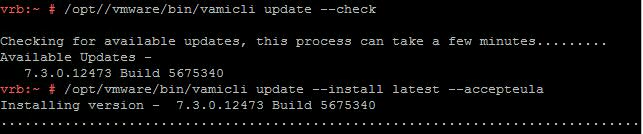
No matter what I did - changed the update options, reboot the appliance - didn't help. Looking on communities.vmware.com I found the post 477322 which presented the same behavior, only for vCenter Server Appliance and it was from 2014. So I tried (a bit skeptically) to start the update from CLI as suggested in the post:

  • ssh to vRB appliance 
  • /opt/vmware/bin/vamicli update --check
  • /opt/vmware/bin/vamicli --install latest --accepteula
And it worked:

I suppose this workaround can be applied to most of the appliances.